How Much Can ChatGPT Edit Excel Directly? What We Learned Before Automation

Introduction
Hello, I’m Mia Sato, AI Researcher at GDX.
If you use Excel at work, you may have had moments where you thought, “There must be an easier way to do this.”
As data grows, even simple actions can take time. You may need to move across multiple sheets, look for numbers, copy formulas to new rows, check inconsistent labels, and confirm possible duplicates.
When a workbook has many formulas and references, even one small edit can make you worry that another calculation may have changed unexpectedly.
Recently, I had a chance to think about whether AI could make a monthly reimbursement management workflow easier for accounting staff.
The workflow involves checking invoice details and amounts from several adjustment sheets, then transferring the necessary information into a management table. Each entry is not difficult, but checking the right rows, columns, currencies, and formulas takes more time than expected.
So this time, I tested ChatGPT for Excel to see how well it could understand an existing workbook and directly update it.
What I found was that the difficult part of Excel automation is not only the transfer work itself. The real challenge is organizing the business rules behind the work.
Which data should be treated as the source of truth?
Which item should go into which column?
Which formulas and exception rules should be kept?
Putting these usually tacit rules into words became the real starting point for automation.
What is ChatGPT for Excel?
ChatGPT for Excel is a feature that lets users ask for work in natural language from a sidebar inside Excel.
It can work while checking the sheets, cells, formulas, and references in the open workbook. It can help organize data, fix formulas, and update tables.
Until now, I had often uploaded Excel files to ChatGPT and asked it to analyze the content or explain formulas.
ChatGPT for Excel is different because it does not only answer questions. It can also edit the workbook that is currently open.
What I wanted to check this time was not simply whether it could read a table.
I wanted to see whether it could understand the roles of multiple sheets and make changes without breaking the existing structure or formulas.
First, I asked it to understand the whole workbook
For this test, I prepared a sample file similar to a reimbursement management workbook.
Several monthly adjustment sheets contained invoice details and amounts, and the necessary information was summarized in a management table.
To make it closer to real work, I included inconsistent wording, possible duplicates, different date formats, and a few formula inconsistencies.
Since I was a little hesitant to ask for edits right away, I first asked ChatGPT to explain the purpose and relationship of each sheet.
ChatGPT organized which sheets were the source data and which sheet gathered the information, based on column names and formula references.
By comparing its explanation with my own understanding, I could confirm assumptions that are usually left unstated, such as which sheet is treated as correct and what each column means.
Before asking AI to work, people and AI need to align their understanding of the business process. I felt that this step itself is part of preparing for automation.
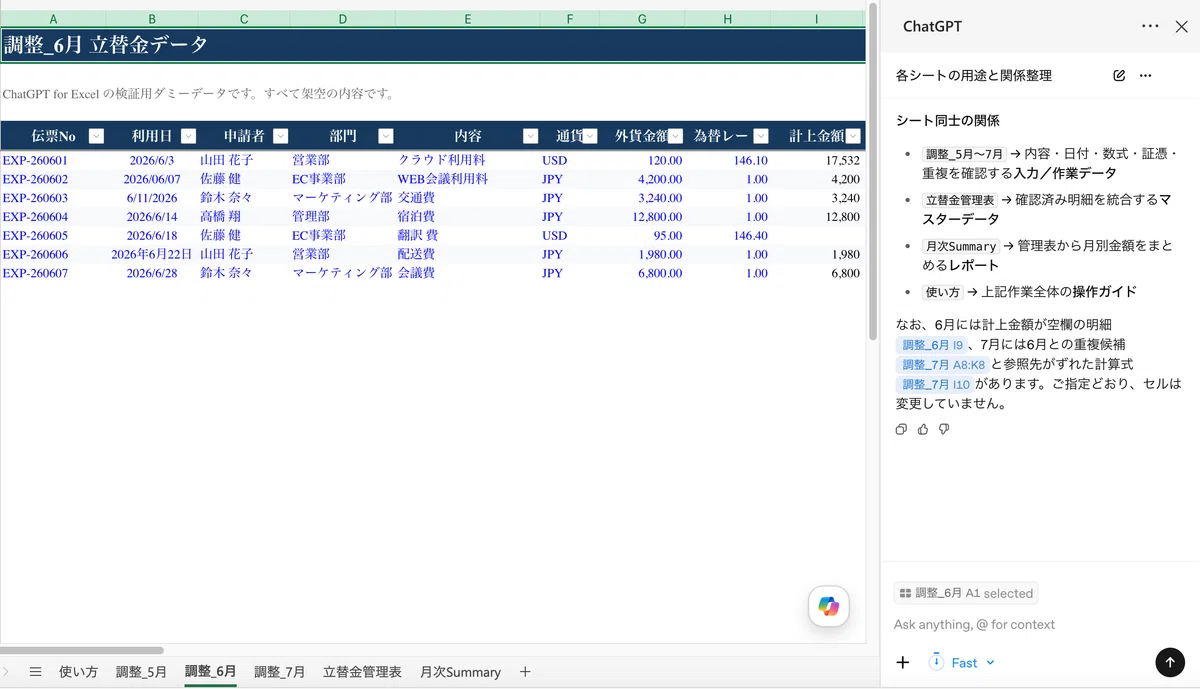
A screen where ChatGPT checked the purpose and relationship of each sheet before editing the workbook.
Fixing formats and formulas
Next, I asked it to standardize date formats and transaction descriptions, and to find data that might be duplicated.
However, similar names can still refer to different transactions. So I did not ask it to delete or merge anything immediately. I first asked it to show only the candidates.
I also asked it to check formulas that differed from surrounding rows, or formulas missing from newly added rows.
What was useful was that it did not only look for error displays. It compared formulas around the cell and explained which reference was different.
That said, a formula that differs from nearby rows is not always wrong.
AI can find differences. But to decide whether the difference is an error, it needs a business rule that explains when the same formula should be used.
In this test, I reviewed the suggested fixes and changed only the ones that were actually appropriate.
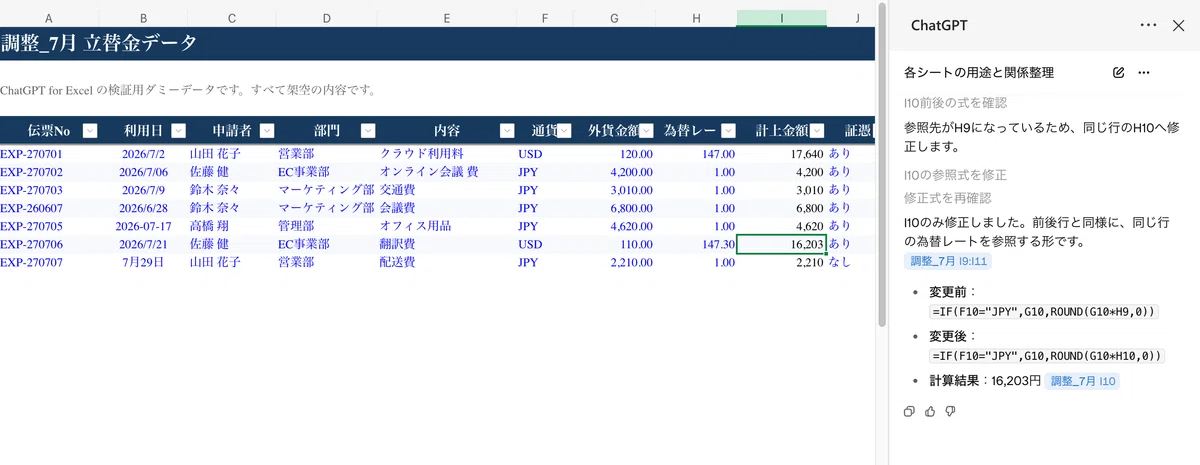
ChatGPT found a formula that referred to the exchange rate in the previous row and corrected it so that it referred to the same row.
Transferring data from adjustment sheets to the management table
After that, I asked ChatGPT to extract invoice descriptions, recorded amounts, foreign currency amounts, and other information from multiple adjustment sheets, then add them below the last row of the reimbursement management table.
I also told it not to change existing formulas or formatting, and to leave fields blank when the information was unclear.
As I organized the request, I realized that conditions such as which sheet to use, which column to fill, and what to do when information is missing are actually business rules that the person in charge usually applies from experience.
ChatGPT followed the conditions, checked the last filled row, and added 14 records.
What I found especially valuable was not only the data transfer itself.
The process of asking AI to do the work helped turn the person’s hidden steps and judgment criteria into explicit instructions.
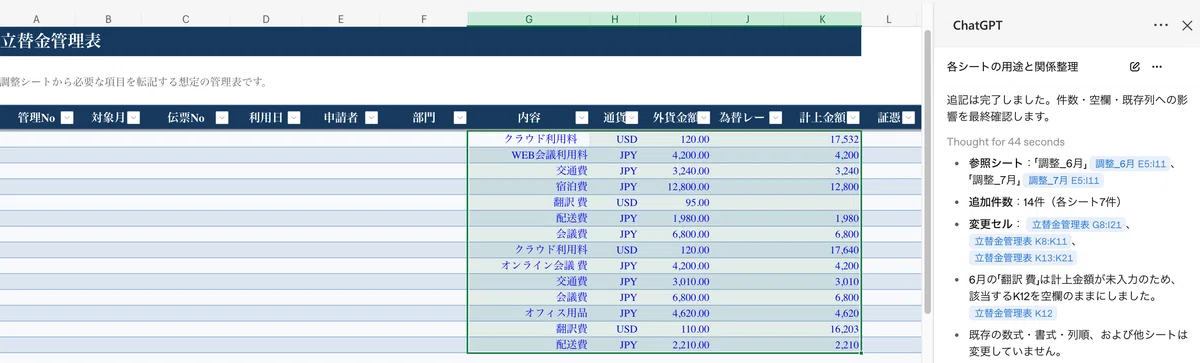
A screen showing 14 records transferred from adjustment sheets into the management table, with the changed range confirmed.
Different ways to apply AI to Excel work
ChatGPT for Excel is not the only way to bring AI into Excel-related work.
There are also approaches such as ChatGPT Work, which can operate screens, and Codex Record & Replay, which I tested previously.
Each method is suited to different types of work, and the things that need to be organized before adoption also differ.
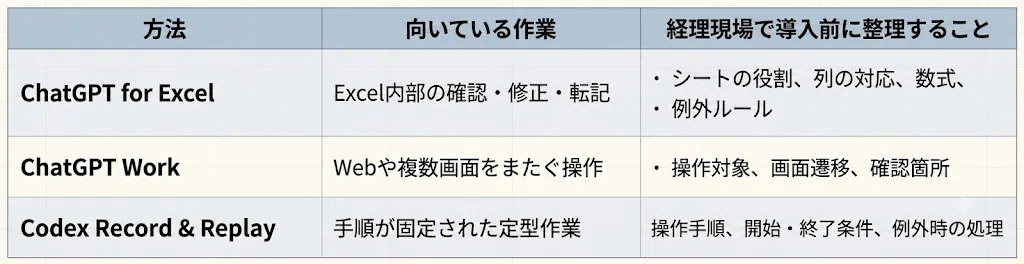
A comparison of AI approaches for Excel work, showing suitable tasks and points to organize before adoption.
For tasks like this test, where the AI needs to check the relationship between sheets and formulas while organizing and updating data inside Excel, ChatGPT for Excel felt easy to use.
On the other hand, tasks that span multiple web services or repeat fixed screen operations may be better suited to other methods.
Still, regardless of the method, one thing is always needed: organizing the business rules that define what should be processed and under what conditions.
The more clearly we can express the judgments that people usually make through experience, the easier it becomes to automate the work.
What I felt after using it
What I found useful was that I could check where changes were made after editing.
By having ChatGPT summarize the rows it transferred and the formulas it changed, I did not need to review every cell from the beginning. I could focus mainly on the range that AI had changed.
At the same time, asking AI to edit a workbook requires people to organize the judgment conditions and the range of allowed changes in advance.
When I tried to explain the task to AI, the rules that the person in charge had handled by experience became easier to see.
It also becomes easier to ask ChatGPT to work when sheet names, column names, and input rules are consistent.
If the same kind of item appears under different names, or if the table structure changes from month to month, additional confirmation is needed each time.
In real operations, the goal is not to let AI edit the file and stop there.
Organize the business rules.
Let AI process the work.
Have people review the changes and exceptions.
I felt that creating this flow is important.
ChatGPT for Excel may not only improve Excel work. It may also help organize the procedures and judgment criteria that used to exist only in the person in charge, and turn them into a more reproducible workflow.
Conclusion
Through this test, I felt that the value of ChatGPT for Excel is not only making data transfer or formula correction faster.
When we ask AI to handle work, we need to express the business rules that people have been applying through experience in a form that others, and AI, can understand.
In other words, organizing the workflow itself becomes a prerequisite for automation.
Once the rules are organized, it becomes easier to create a flow where AI processes the work and people review the results and exceptions.
The process can also be reused in later months.
ChatGPT for Excel is not only a tool that replaces some human Excel operations. It can also become a trigger for organizing work that only one person understood and turning it into a reproducible process.
References
- Official: Introducing ChatGPT for Excel and new financial data integrations / OpenAI / OpenAI
- Official: ChatGPT for Excel and Google Sheets / OpenAI Help Center / OpenAI Help Center
- Official: Using the built-in browser in the ChatGPT desktop app / OpenAI Help Center / OpenAI Help Center
- Reference: ChatGPT for Excel begins, financial data integration also strengthened / Impress Watch / Impress Watch
- Reference: OpenAI announces ChatGPT for Excel / Mado no Mori / Mado no Mori
※ Part of this article was created with the support of AI and edited by the author. This article is based on OpenAI’s official announcements and publicly available information, with the author’s own perspective on AI adoption and EC operations at GDX. Please refer to official announcements and primary sources for details about features and availability.